Klaviyo is an email marketing platform that allows you to create and send professional email campaigns to potential buyers.
By connecting Klaviyo to your Mayzing selling experience, you can promote your products, reach potential customers and encourage them to engage with your business.
Why use Klaviyo?
Reach more potential buyers: Send marketing emails to your contact lists rather than contacting people individually.
Create professional emails: Use customisable templates to showcase your products and brand.
Send from your own email address: Use a branded email address such as [email protected].
Track engagement: See how many people open your emails and click your links.
Receive replies directly: Mayzing can help you configure email forwarding so potential buyers' replies arrive in your existing inbox.
This guide explains how to set up Klaviyo, connect your domain, create your first email campaign and receive replies from potential buyers.

IMPORTANT - when you are building your marketing campaign. You can choose what to expose in the footer. If you do not want to share your address, click on the footer and hit Edit Text.
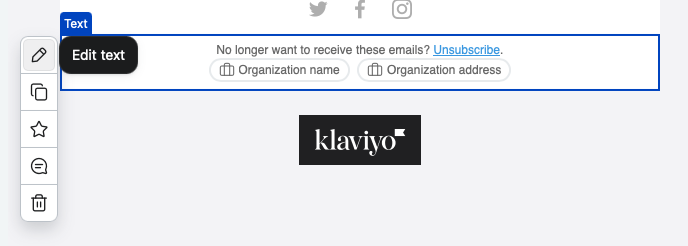
Then delete the Organisation address block
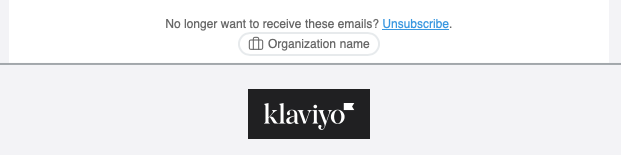
Steps to set up the account are below
Visit klaviyo.com and setup a new account. You can use a free account at this point until you are set up and happy.
Once you have completed step 1, you will be in the dashboard.
To connect your domain, navigate to settings, general, and then domains.
Click add domain to a new domain.
Choose what types of emails you will be sending.
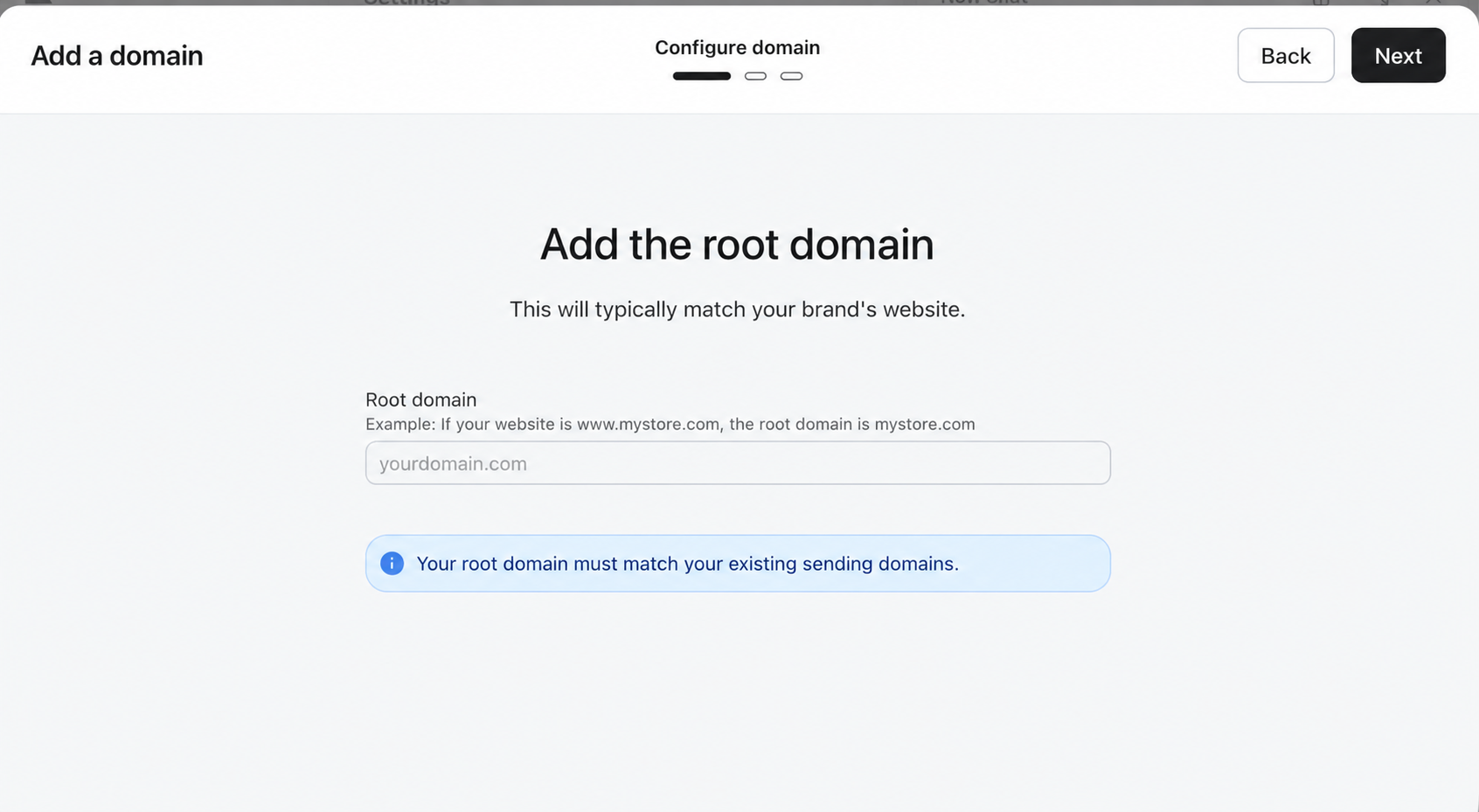
Add the root domain if your website is www.yourdomain.com use yourdomain.com
Add the email prefix you want to use, such as hello, so your emails will come from [email protected] select static for the routing type
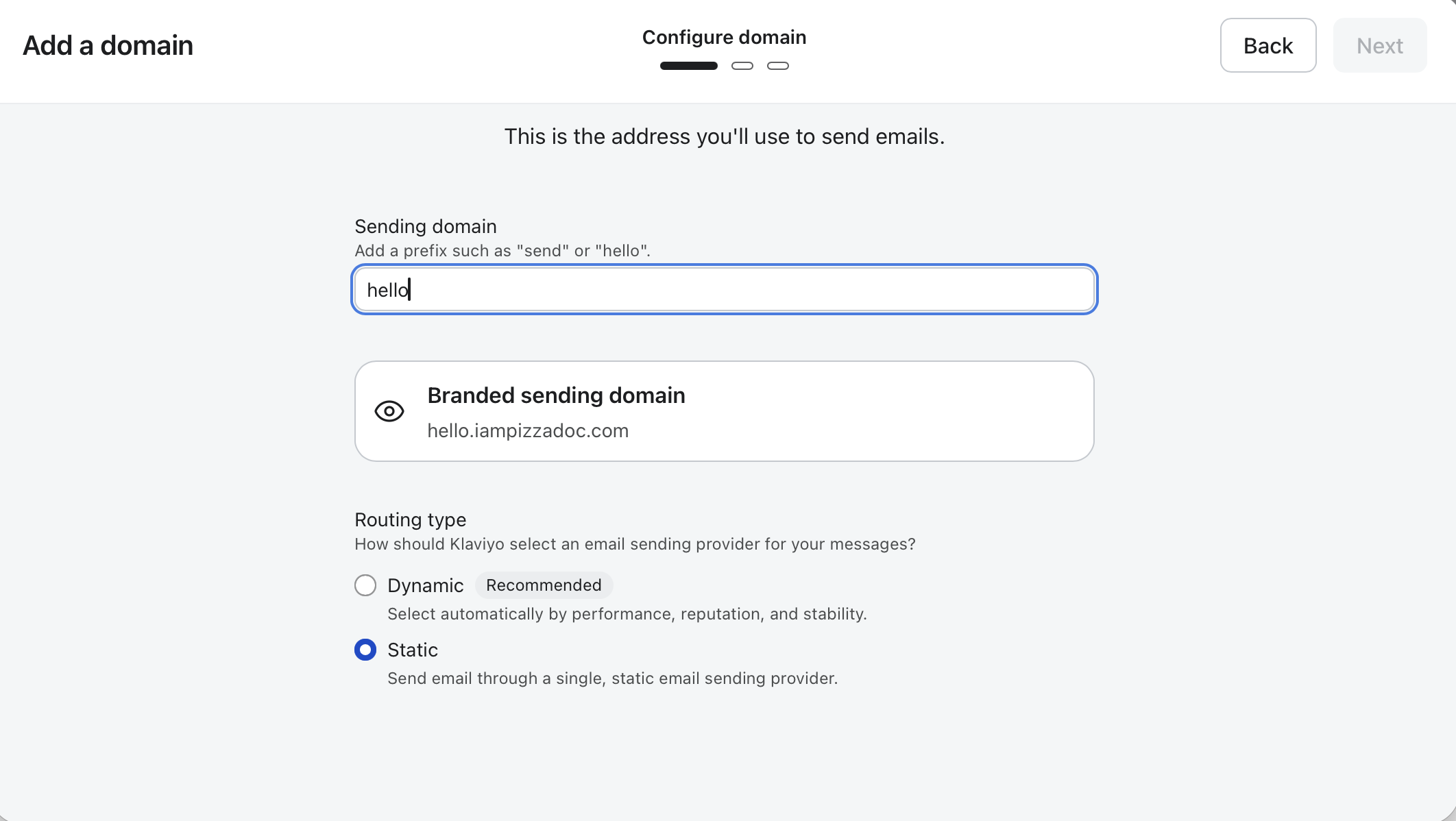
Press next. You will be presented with the DNS records you need to add at your domain providers site.
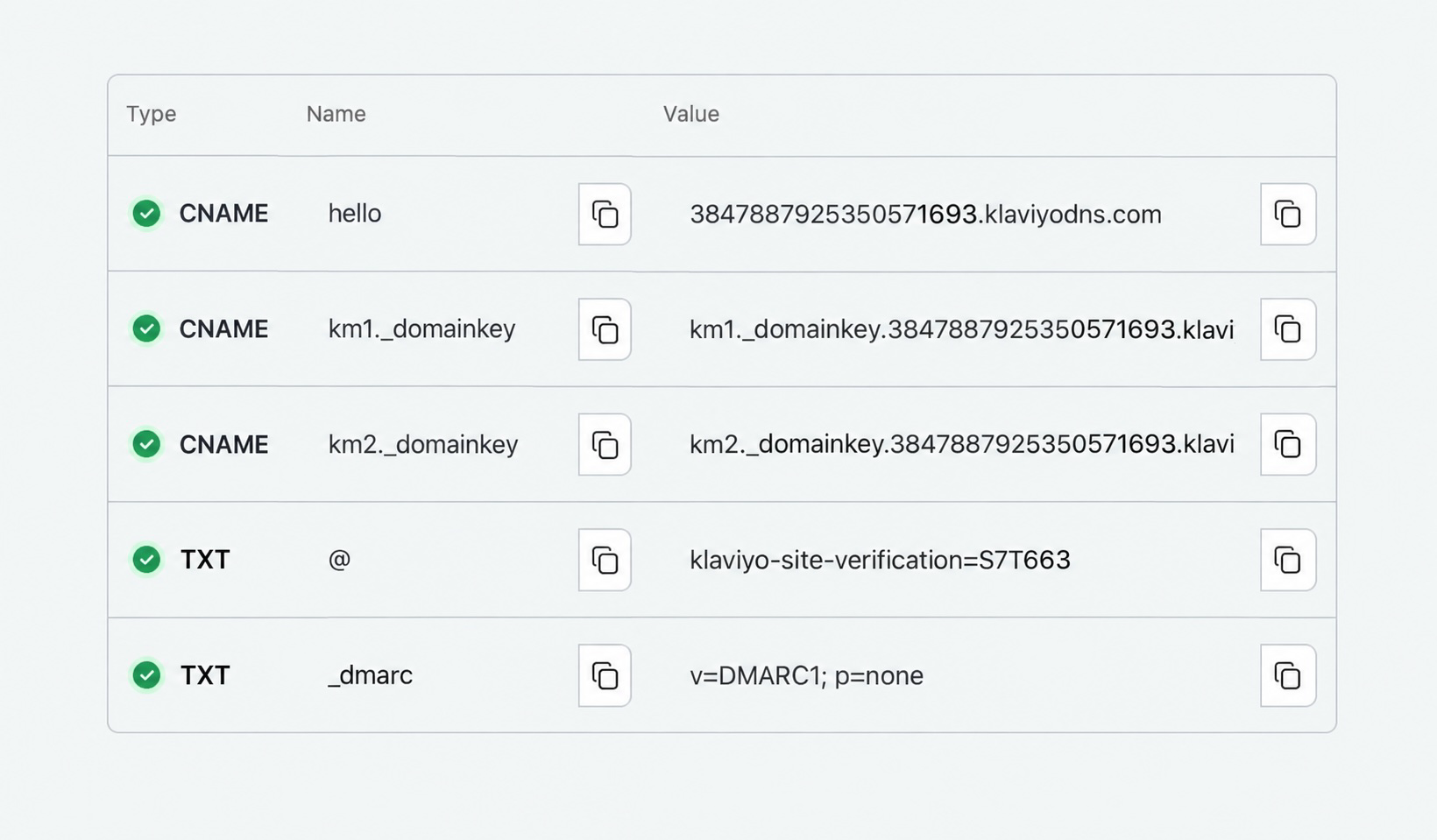
Log in to your domain providers site, and add the records. DO NOT change or delete any of the records you previously added when setting up your Mayzing store.
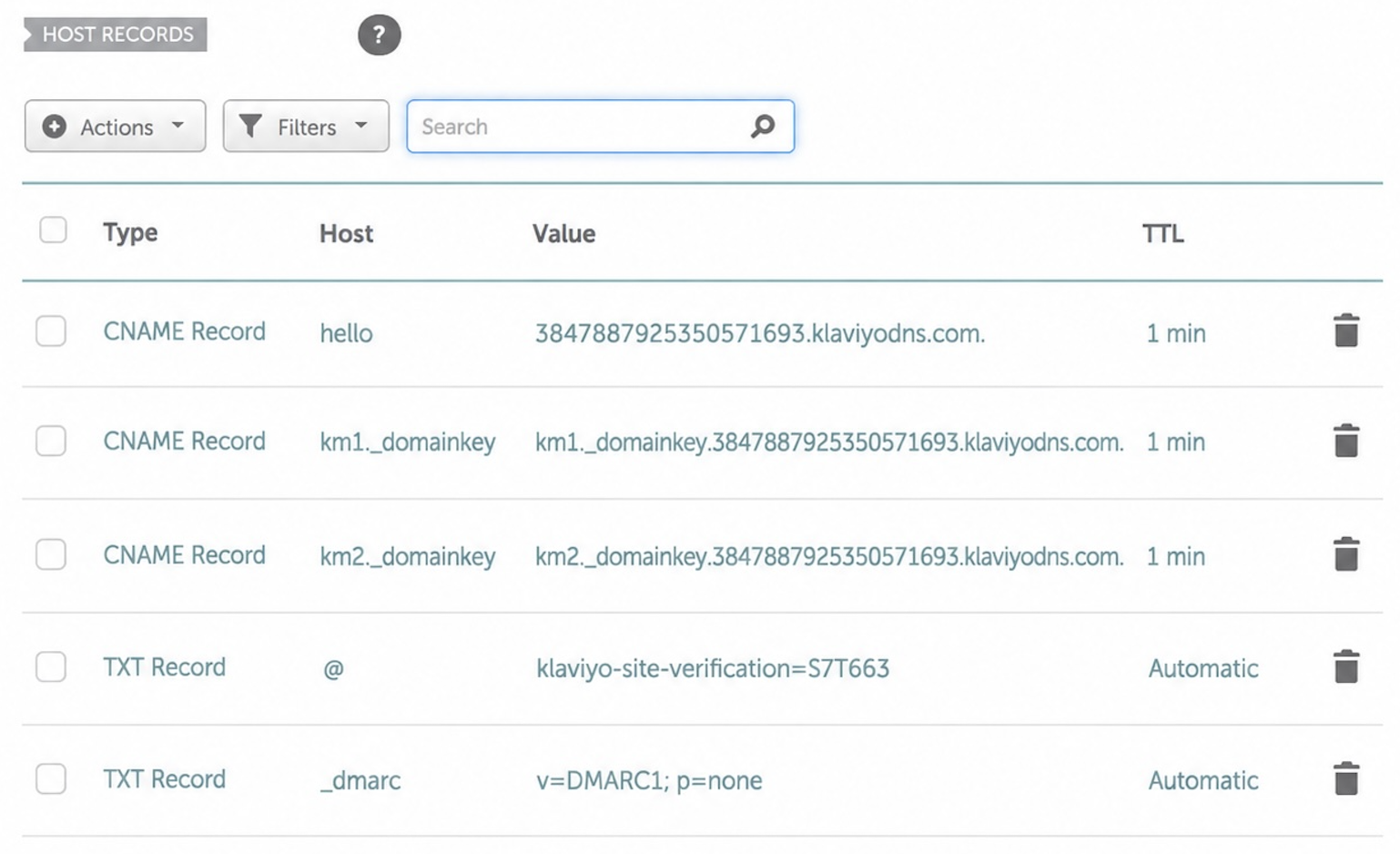
Once they have been added, press verify on Klaviyo. This will then test that you have added the 5 records Klaviyo needs. This can take unto 48 hours, but usually takes minutes.
Before sending any emails, please contact us on the chat button, bottom right of your dashboard, and let us know the email address you just set up in Klaviyo, and the email address you want to use for any replies to messages sent from Klaviyo. We will add the entries needed to make sure that your Klaviyo email address response are forwarded to your other mailbox.
Once we have confirmed the change has been made, you are ready to send emails through Klaviyo.
