company logo

Help center

Go to Mayzing
All collectionsConnecting a domainManually connect your domain to your Mayzing store

Manually connect your domain to your Mayzing store

If you are using a domain provider that our automated domain connection does not yet integrate with, then you will need to manually enter the records on your domain provider’s site.

info icon
Important: Zendesk Email Update – Zendesk has made changes to its email authentication requirements. You now need to add 3 additional DNS records to your domain to improve email deliverability and help prevent support emails from going to spam.
  1. On the dashboard main navigation, click on Domain Setup.

  2. Enter your custom domain in the custom domain box (Do not include the www part of the domain) and press Connect.

  3. Log in to your domain provider’s site.

  4. Find your domain and go to the DNS Management screen.

  5. Manually add the entries that you see on the domain setup section of your seller dashboard. Examples of which can been seen below.

info icon
If you are using Unstoppable Domains your @ TXT record will need to be entered as "v=spf1 mx include:spf.improvmx.com include:mail.zendesk.com ~all" including the quotation marks
info icon
If you are using Namecheap, the MX records are entered on the same page as the advanced DNS, but you’ll need to scroll down to the Mail Settings section
warning icon
The red records below are unique to you, and should be copied from your dashboard. Don't use the records in the example below.

Record Type

Host

New Value

Priority

A

@

37.16.11.30


CNAME

www

ssl.mayzing.com


CNAME

emXXXX

u26760764.wl015.sendgrid.net


CNAME

s1._domainkey

s1.domainkey.u26760764.wl015.sendgrid.net


CNAME

s2._domainkey

S2.domainkey.u26760764.wl015.sendgrid.net


CNAME

zendesk1._domainkey

zendesk1._domainkey.zendesk.com


CNAME

zendesk2._domainkey

zendesk2._domainkey.zendesk.com


TXT

@

v=spf1 mx include:spf.improvmx.com include:mail.zendesk.com ~all


TXT

zendeskverification

db14899a2decag5r


TXT

_dmarc

V=DMARC1; p=none


MX

@

mx1.improvmx.com

10

MX

@

mx2.improvmx.com

20

  1. Once you have added the records on the dashboard, you can press the Verify button against each record to ensure that they have been updated and have propagated correctly.

  2. You should click verify on each of the entries to confirm they have completed correctly.  If they have, it will show the status on your dashboard as complete and will be green.
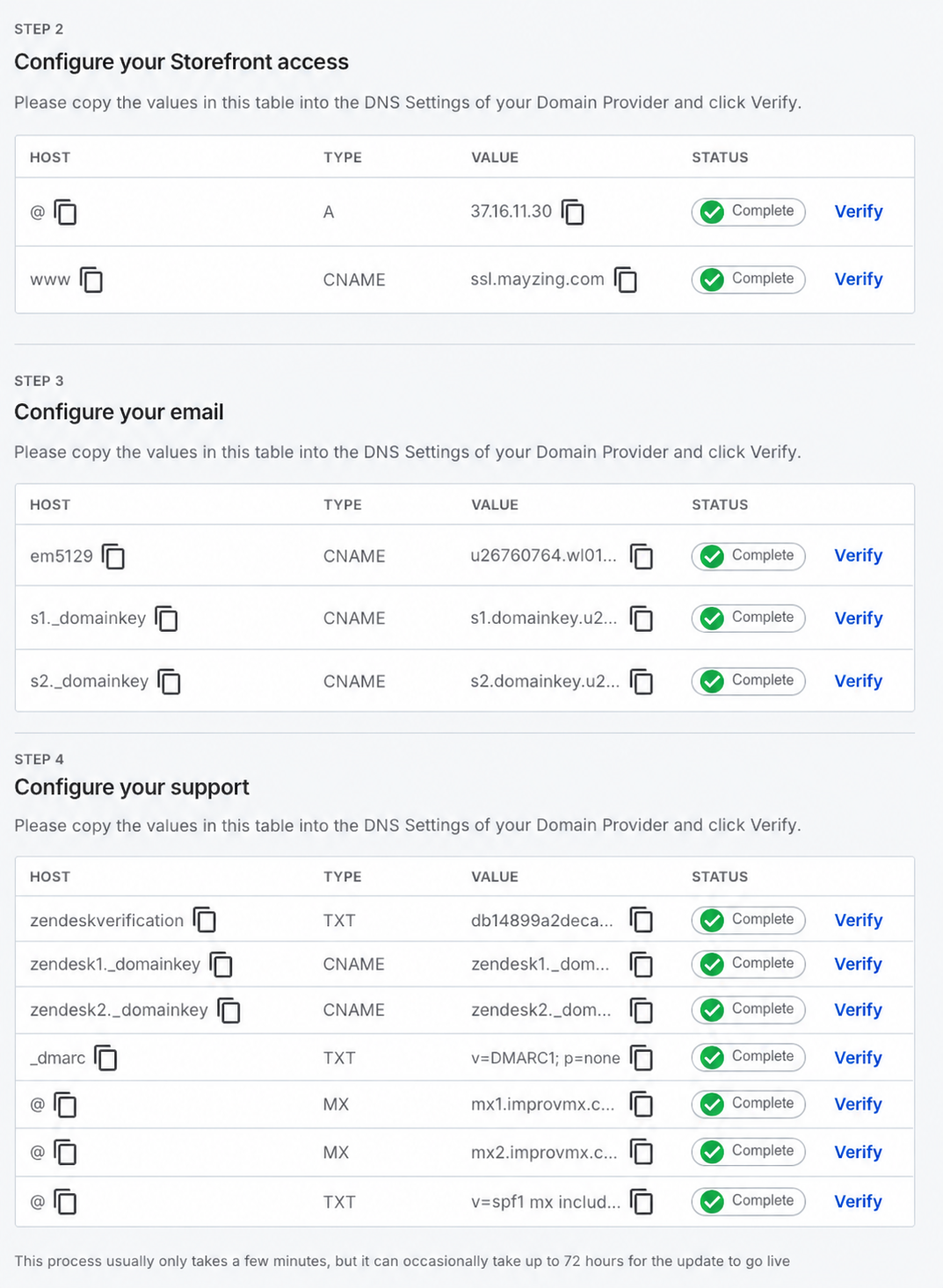
DNS setup page showing Steps 2–4 for configuring storefront, email, and support records, with DNS tables marked Complete and Verify links. Visible: STEP 2, Configure your Storefront access, HOST, TYPE, VALUE, STATUS.

It can take up to 24 hours for these changes to be propagated around the internet.  If you wish to check the progress of these, you can do so at the following links.  Ensuring you change YOURDOMAINNAME to your domainname. For example https://www.whatsmydns.net/#A/moteefe.com

  • https://www.whatsmydns.net/ - A/YOURDOMAINNAME

  • https://www.whatsmydns.net/ - CNAME/www.YOURDOMAINAME

Once all of this has been completed, and the changes have been propagated, your store is up and running!

Did this answer your question?
😞
😐
😁