
From the dashboard, look to the navigation bar on the left-hand side of your screen. At the top right corner of this navigation bar, you'll find your name or the team you currently view.
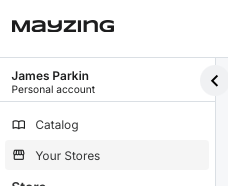
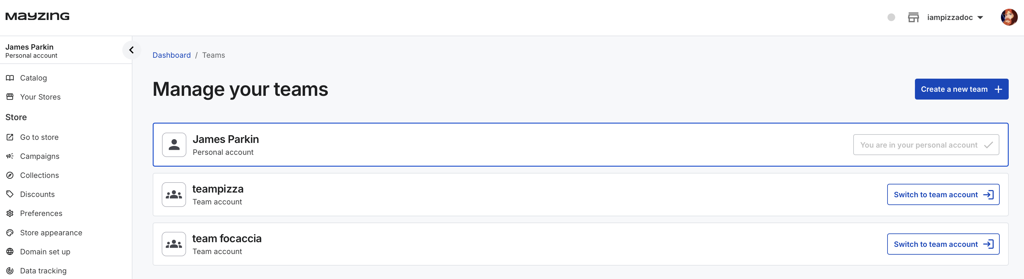
Click on your name or team name. This action will take you to the 'Manage your Teams' page.
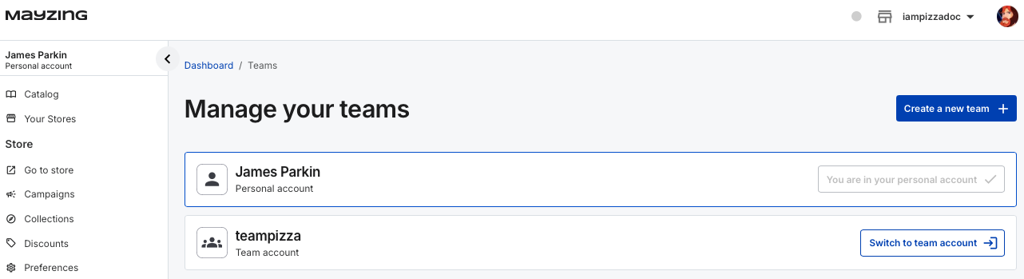
Click the 'Create a New Team' option on the' Manage your Teams' page.
Upon clicking 'Create a New Team', a pop-up window will appear, prompting you to name your team. Enter a suitable name for your new team.
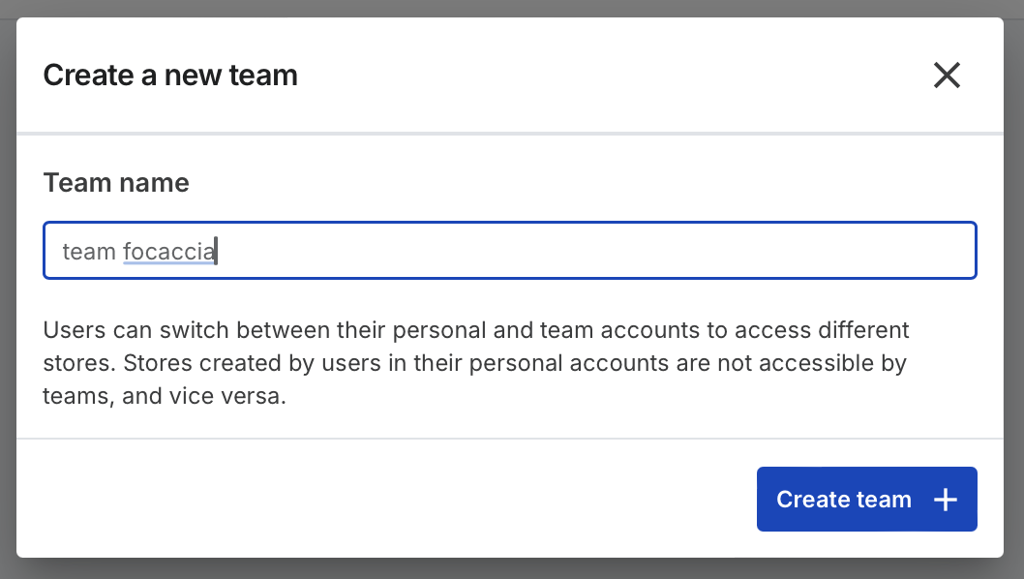
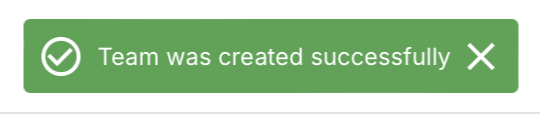
After naming your team, click 'Create Item'. A notification will appear on your screen confirming that your team has been successfully created.
Your new team should now be listed on the 'Manage your Teams' page. This confirms that your team has been successfully created and is ready for you to invite team members and manage your stores.

Team Accounts offer the benefit of collaboration and shared management of your stores. This flexibility allows you to leverage Mayzing's features optimally, tailoring your use of the platform to your specific requirements.