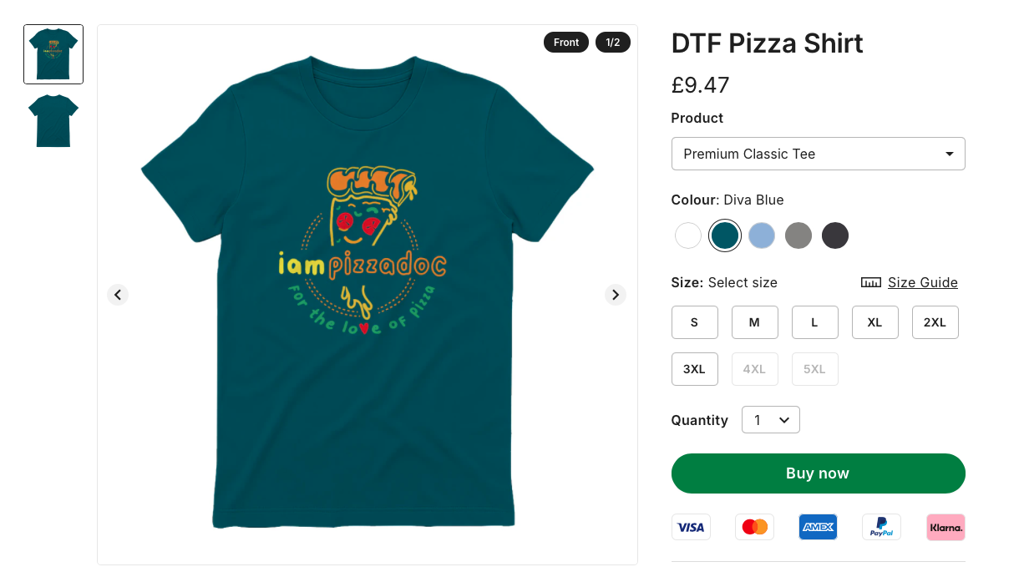
To quickly add the DTF garments to an existing campaign, you can use the process below.
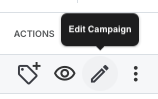
Find the campaign you want to add the DTF product to, and click on the edit button.
Open image-20250918-114821.png
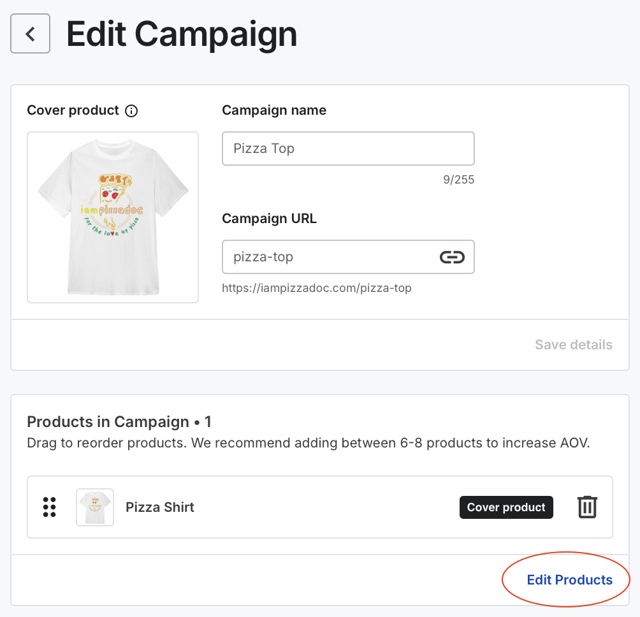
On the next screen click edit products
Open image-20250918-115016.png
In the bottom left of the screen, press add products
Open image-20250918-115056.png

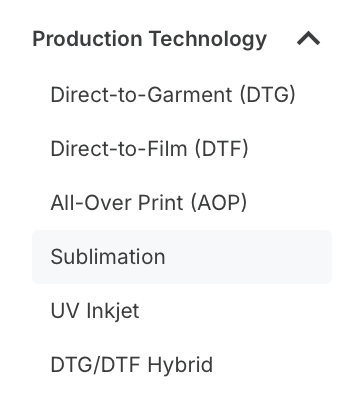
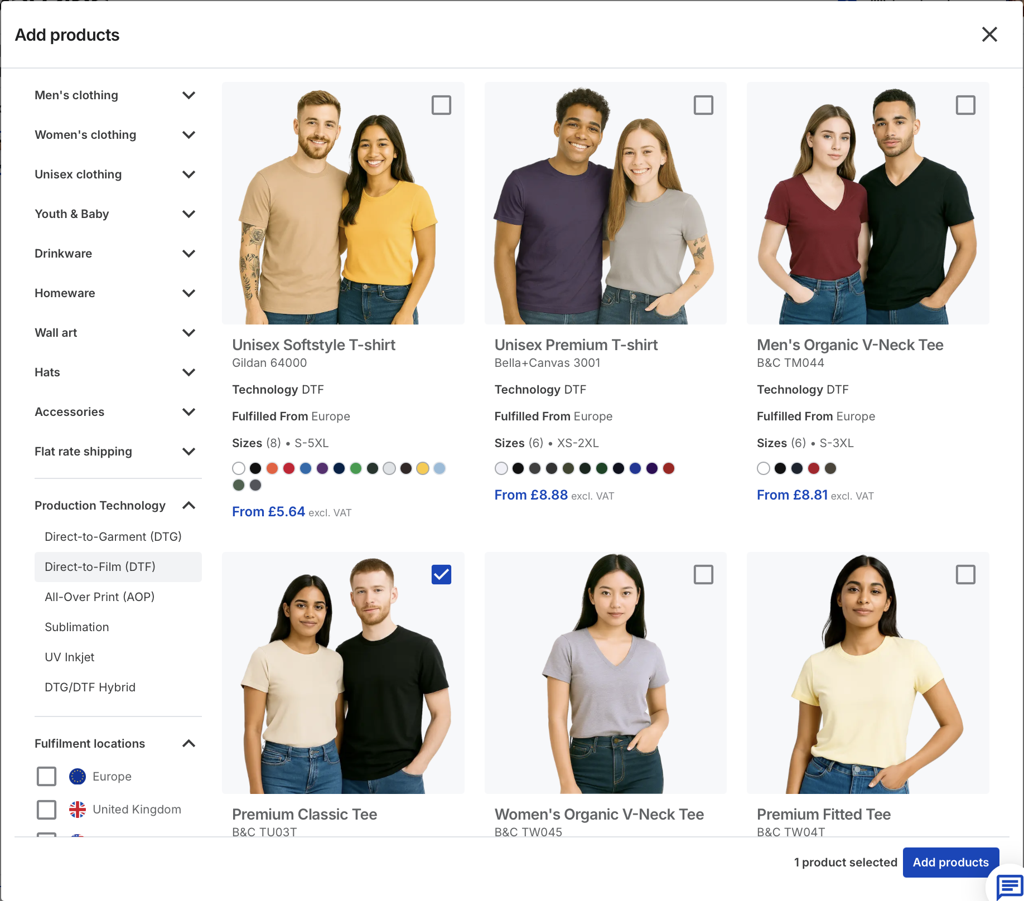
On the left hand navigation bar, click on DTF under production technology
Open image-20250918-115128.png
Select the new product you want to add, and press add products.
Open image-20250918-115255.png
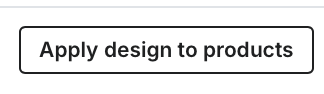
Now press the Apply design to products button, this will apply the design on your main product to the new product.
Open image-20250918-115350.png
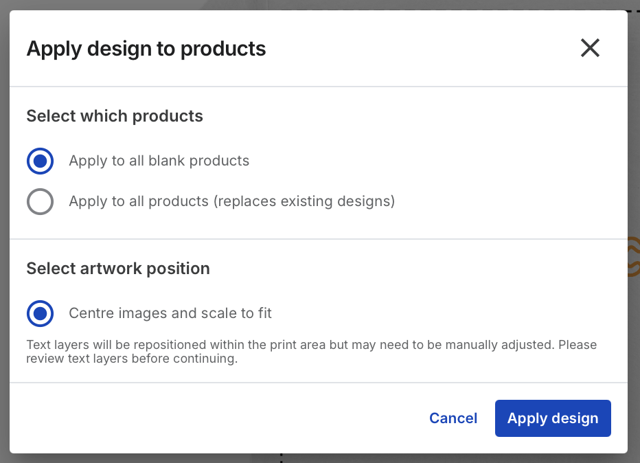
Ensure Apply to all blank products is selected, and press apply design.
Open image-20250918-115426.png
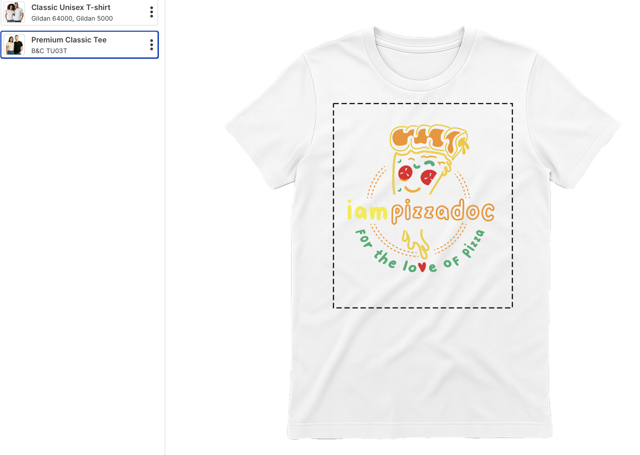
Click on the new product, and you will see your design has been applied to the new product.
Open image-20250918-115512.png
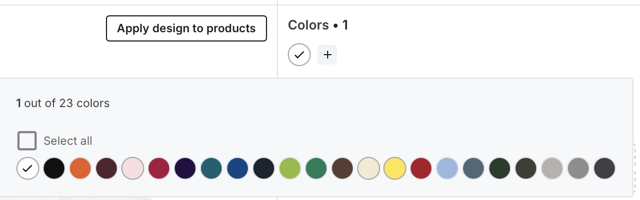
Now you can use the colour selector to choose which colours you want the product to use.
Open image-20250918-115815.png
Press Continue to pricing
Add the retail price of your new product, and press continue to review
Select the mockups for your new product, and press save and continue.
Publish your store
Now go to your store, and you will see the new product.
Open image-20250918-120053.png