
Go to dashboard.mayzing.com and click on collections.
You can see in this example that we have no collections set up.
To start, let's set the file names so that they are added to the correct collections.
Each images file name that you want to add to a collection will need to have the new collection name at the front of the file name in Square Brackets for example [pets]puppy.png
In this example you can see that we are creating 3 new collections. Zoo, Pets, and Cats.
Open image-20250501-161005.png
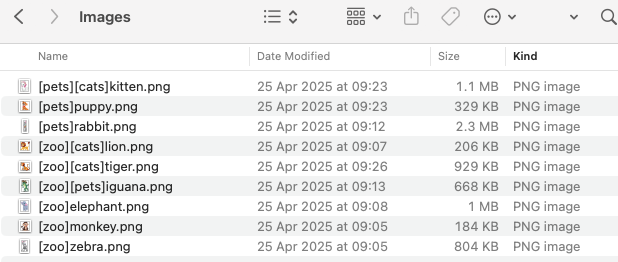
If you want the image to be used in multiple collections, you can add multiple collection names, remember, they need to be in square brackets for example [zoo][cats]lion.png
Go to campaigns, and find the campaign you want to clone from. Click on the 3 dots, and hit bulk clone.
Now drag the images you created earlier, in to the box. Once they are loaded, press Upload images. From here they will start to upload.
Make sure you have selected all of the images you want to use, and press Create 9 campaigns. The number will depend on how many images you select.
The campaigns will now start cloning.
Once all the thumbnails have loaded. Your campaigns have been cloned. You can click on the campaigns to see them.
Press publish changes, to publish this to your store.
Once the publish has completed, you can click on collections to see that the collections have been created. And that the campaigns you selected to be added have been put in the right collections.
Now you can go to your store. Click on go to store.
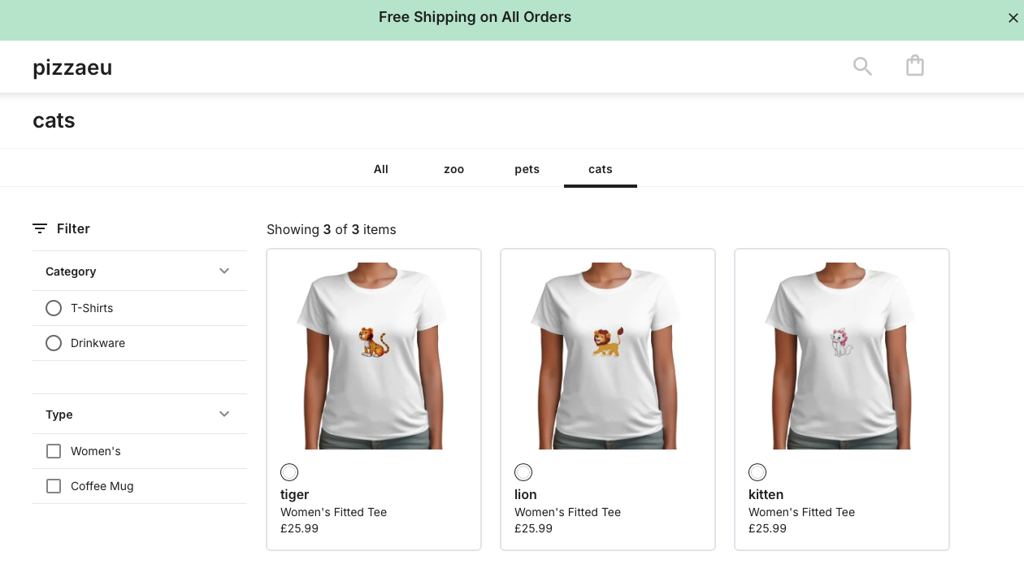
Your store will load, and you can see the collections have been published. You can click on each one to see the campaigns in the collection.
Open image-20250501-161027.png
This method can be used to create up to 50 campaigns at a time which will speed up the process of creating everything you need to get your store up and running.
Automatically Create and add to Sub-collections
In addition to assigning campaigns to top-level collections, you can also place them directly into sub-collections by using a dot (.) inside your square-bracket tag.
Example [dogs.chihuahua]cute_dog.png
This will create a parent collection named dogs (if it doesn't already exist) and Create a sub-collection named chihuahua under dogs (if it doesn't already exist)
This will then add the cloned campaign to the chihuahua sub-collection