If you already sell products in your own Shopify store, External Product Mapping lets you hand the printing and shipping of those products over to Mayzing without rebuilding your listings. Mapping links each variant of your Shopify product to a matching Mayzing variant, so that new orders arrive on your Mayzing dashboard ready to be paid for and sent to our printers. In order to do this, follow the steps below.
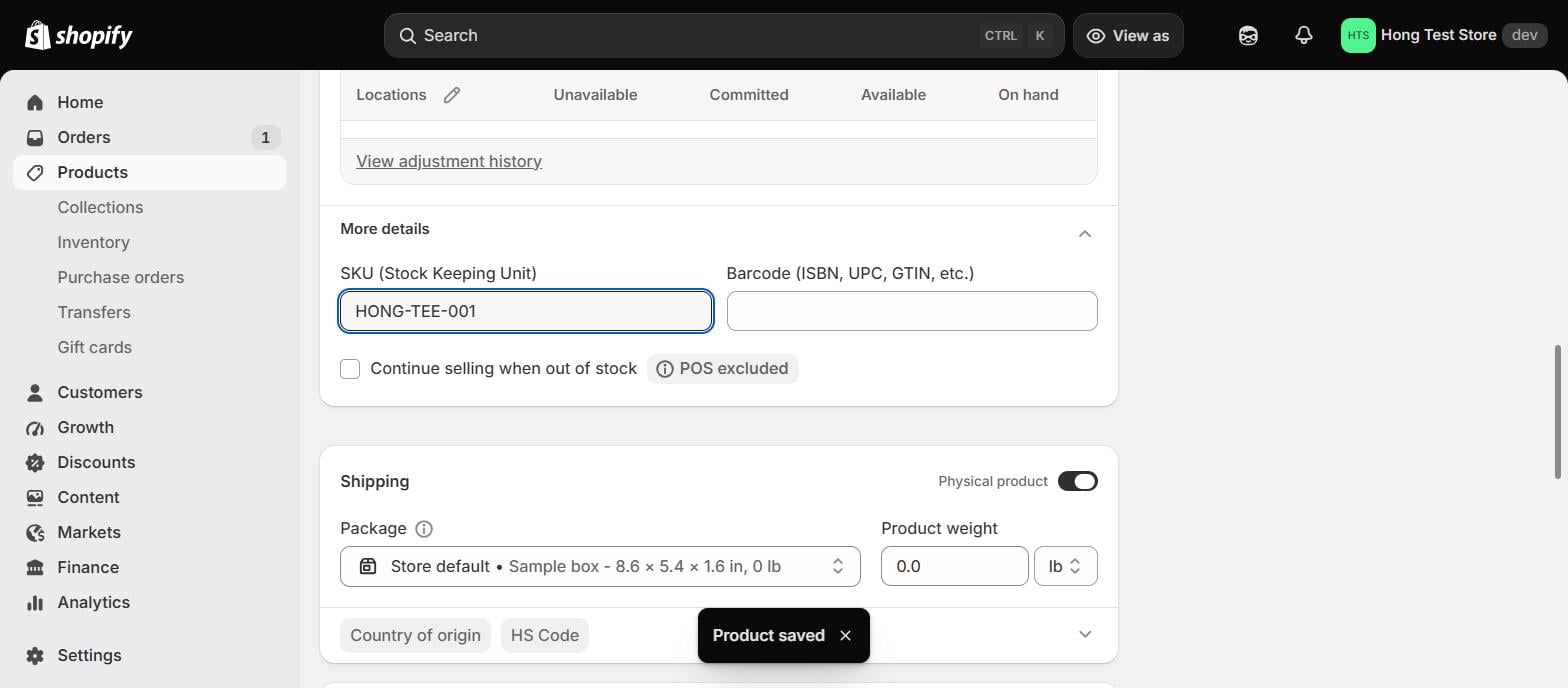
Before you start, check that every variant of the Shopify product you want to map has a SKU filled in.
Build the matching product in Mayzing, using the same colours and sizes you sell in Shopify. If you have not built a product before, follow Shopify - Create a Product and then come back here. Your new product will sit in All Products with a status of Unpublished.
If your Shopify listing was made from a photo of your own stock, you may not have an image that matches your Mayzing design. Open the preview of your new Mayzing product, open the image in a new browser tab, save it, and use that image on your Shopify listing so that the two match.
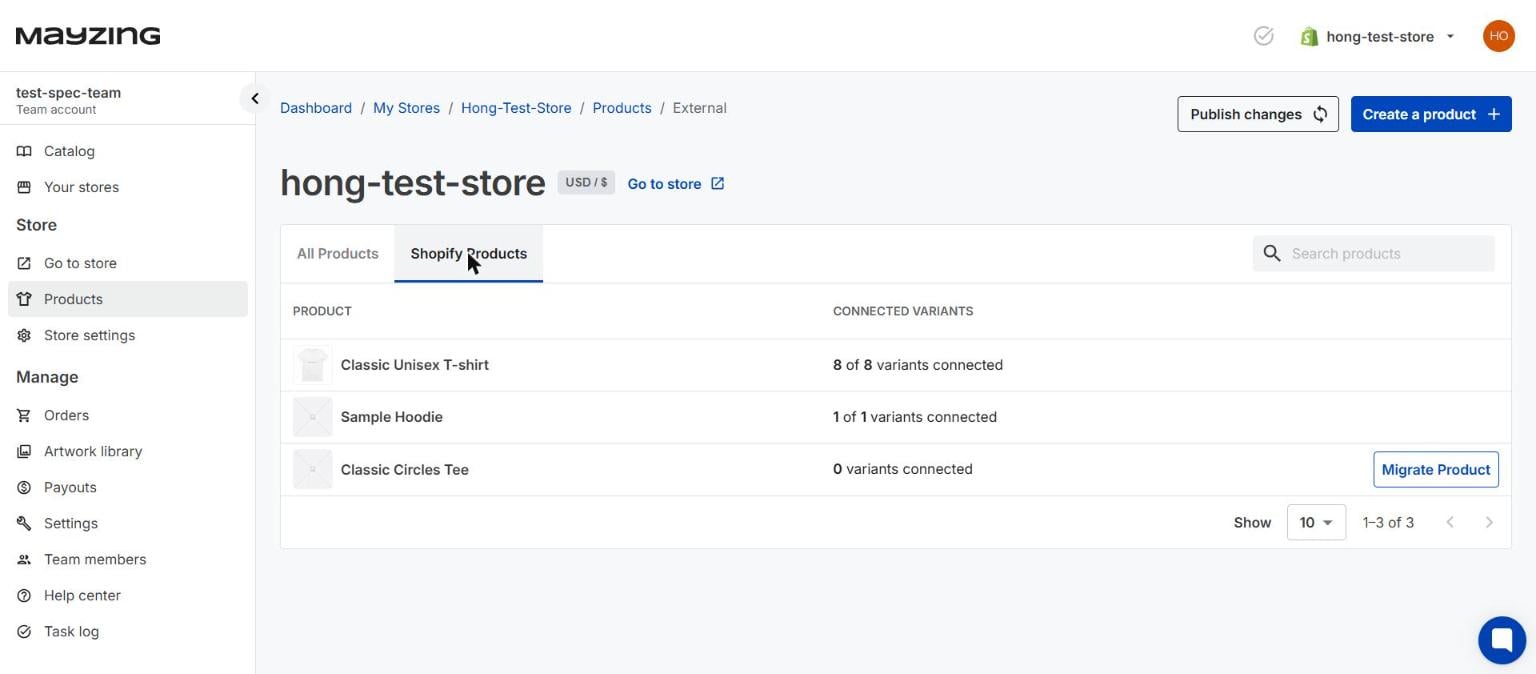
On the Mayzing dashboard, on the left hand navigation bar select Products, then select the Shopify Products tab.
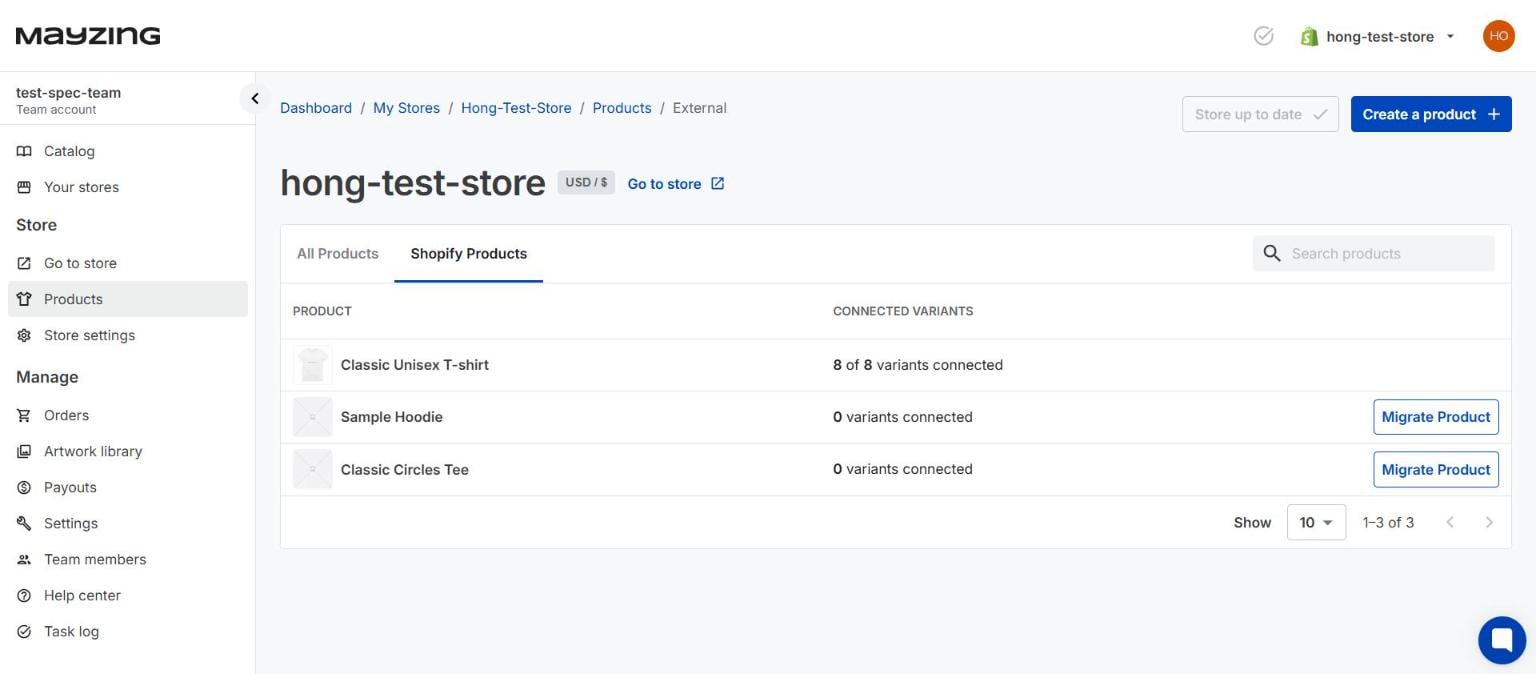
Mayzing reads your Shopify store and lists everything in it, with a Connected Variants count against each product. Products that are already linked to Mayzing show a count such as 8 of 8 variants connected. Products that exist only in Shopify show 0 variants connected, along with a Migrate Product button.
Find the product you want Mayzing to fulfil, and click Migrate Product.
The Select product to migrate to window will open, listing the Mayzing products in this store along with the date each one was created. If this list is empty, it means every Mayzing product in the store is already mapped, and you need to build the matching product first.
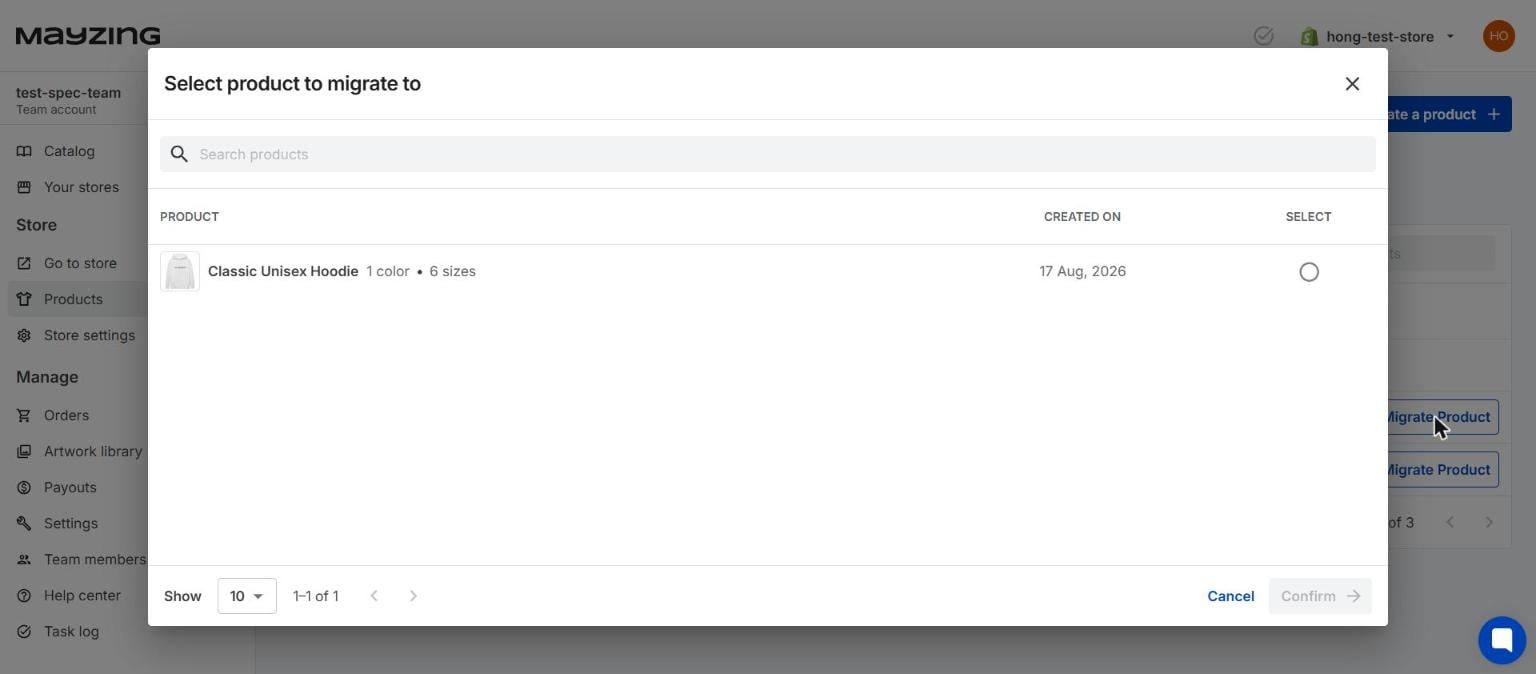
Select the Mayzing product you want to map on to, and press Confirm.
You will now be on the Migrate products screen. Your Shopify product is shown on the left, your Mayzing product on the right, and underneath there is a row for each of your Shopify variants.
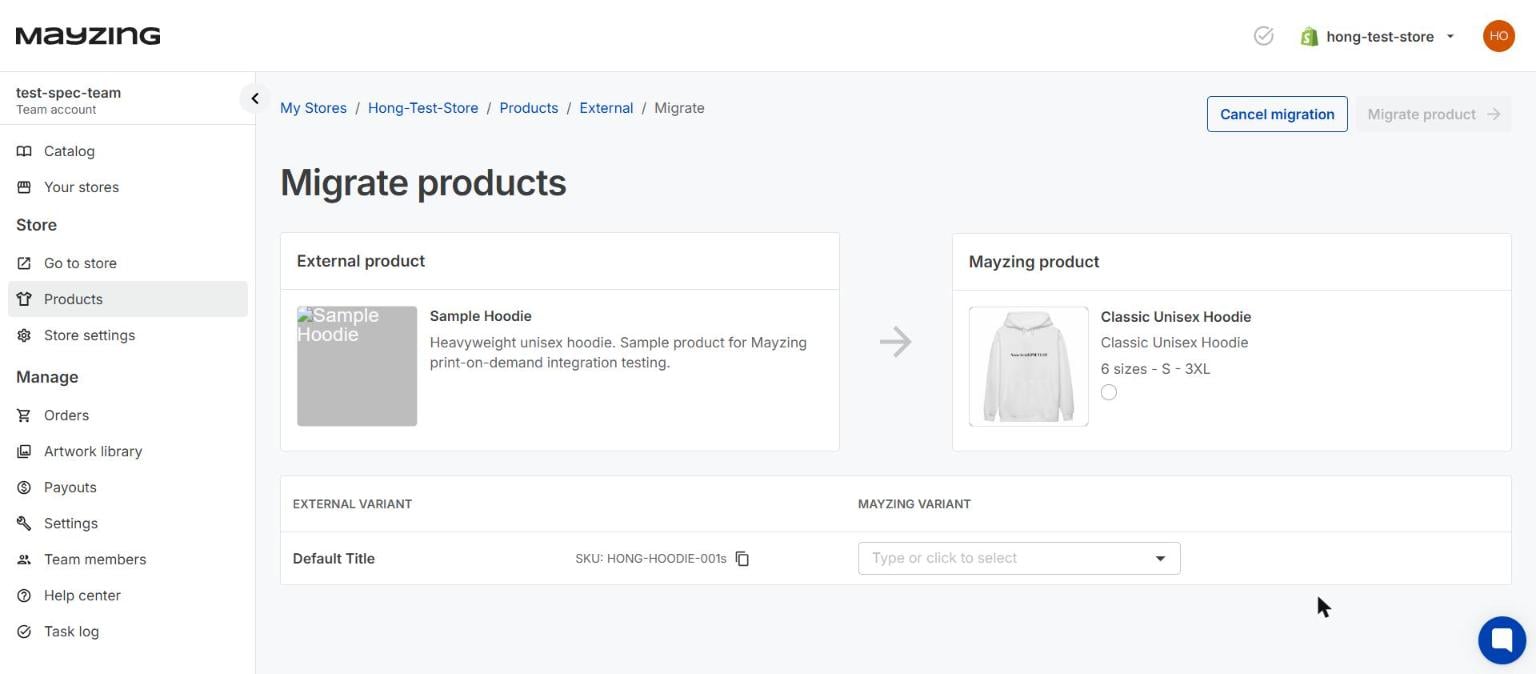
For each row, open the Mayzing Variant field and choose the variant it matches, so White / S goes to White / S, White / M goes to White / M, and so on. Once a row is matched the Mayzing SKU appears beside it, so you can see your Shopify SKU on the left and the Mayzing SKU on the right.
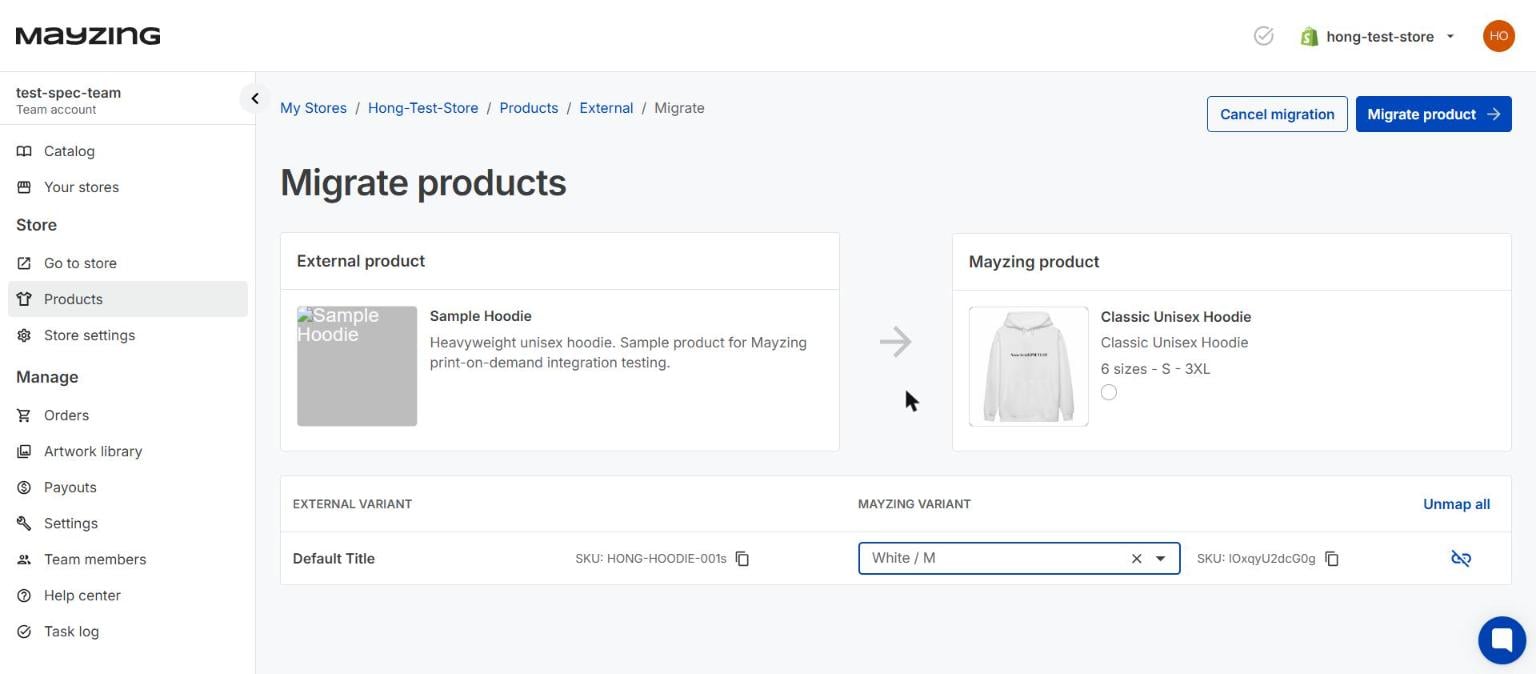
If your Mayzing product has sizes or colours that your Shopify listing does not, those rows have nothing to match and you simply leave them. This is expected and is not an error.
If you would like to start the mapping again, press Unmap all. To leave without changing anything, press Cancel migration.
Once you have matched everything you can, press Migrate product.
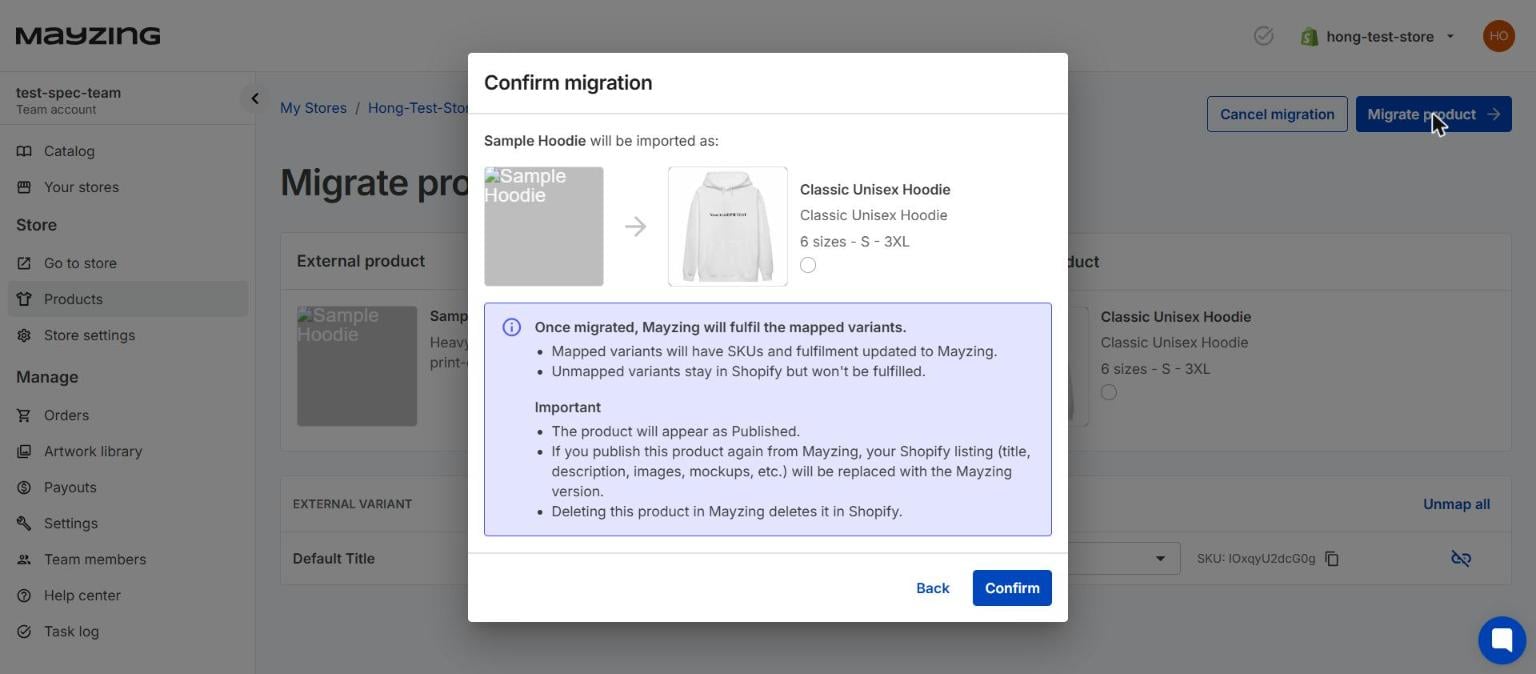
The Confirm migration window will tell you exactly what is about to happen. Your mapped variants will have their SKUs and fulfilment updated to Mayzing, any unmapped variants will stay in Shopify but will not be fulfilled, and the product will appear as Published. Read this through, then press Confirm.
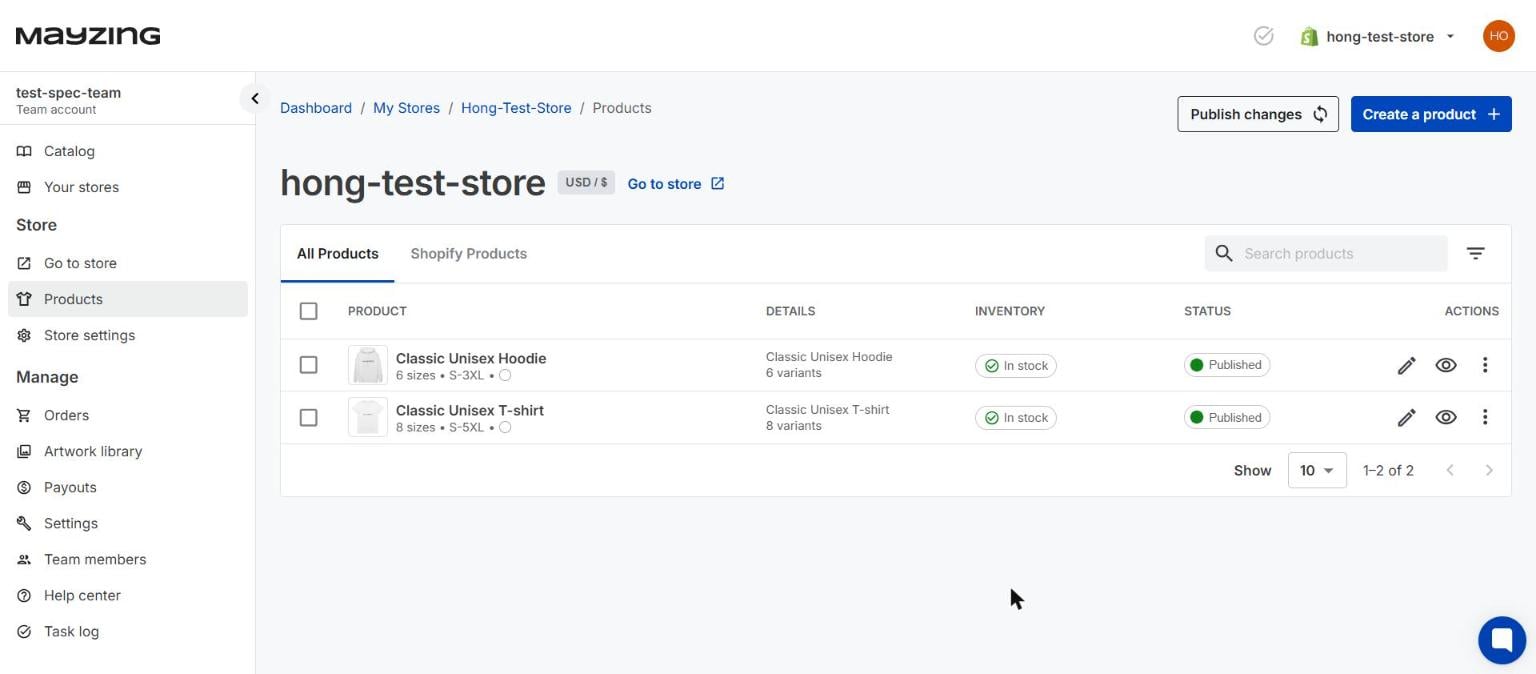
Back in All Products, the status of your Mayzing product will have changed from Unpublished to Published on its own.
On the Shopify Products tab, your Shopify product now shows its variants as connected, and no longer has a Migrate Product button.
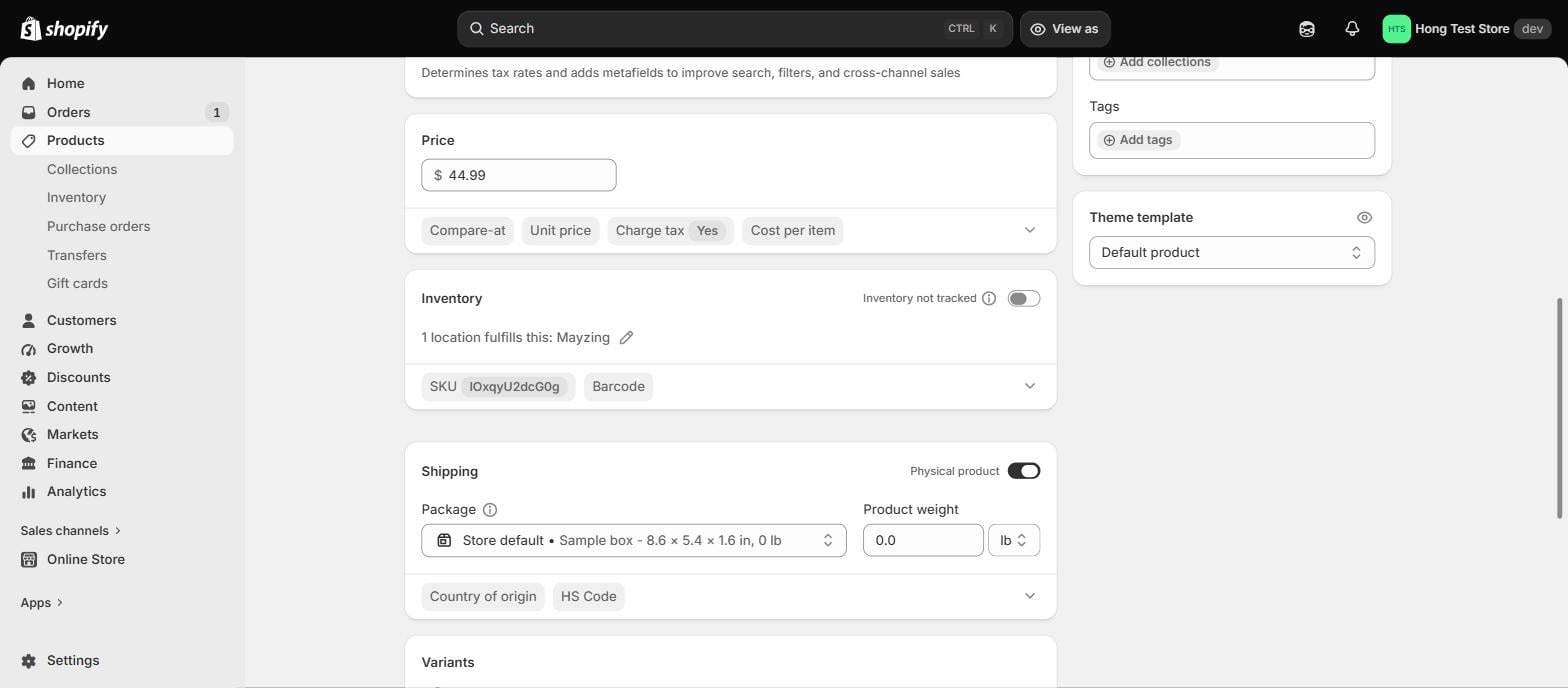
Return to your Shopify dashboard and open the product. In the Inventory section you will see that the SKU has been replaced with a Mayzing SKU.
From now on, when a customer buys one of your mapped variants, the order will appear on your Mayzing dashboard under Orders, on the Fulfilment Orders tab. It will not appear under Mayzing Orders, as that only holds orders from a Mayzing storefront.
Please note that once a product is mapped, Mayzing holds the master copy of the design. If you publish that product again from Mayzing, your Shopify listing, including the title, description, images and mockups, will be replaced with the Mayzing version, and anything you customised in Shopify will be lost.
Please also note that deleting a mapped product in Mayzing will delete it from your Shopify store as well.
Take particular care with the Publish changes button at the top of your store. It republishes every mapped product at once and overwrites all of them in Shopify, and there is no undo. To update a single product, publish that product on its own. If you run a large store and would rather your team did not have access to this button, contact Mayzing support and we can disable it on your account.
