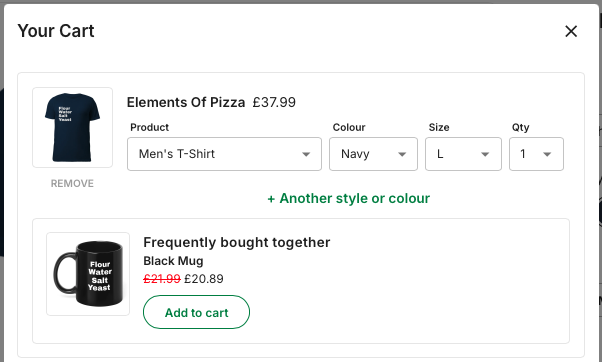
Upsell cart boosters are used to attempt to upsell another item from within the campaign someone is making a purchase from.
These are now global to your store, so only need to be set once, and all new campaigns will inherit the same behaviour.
To start. Click on promotions.
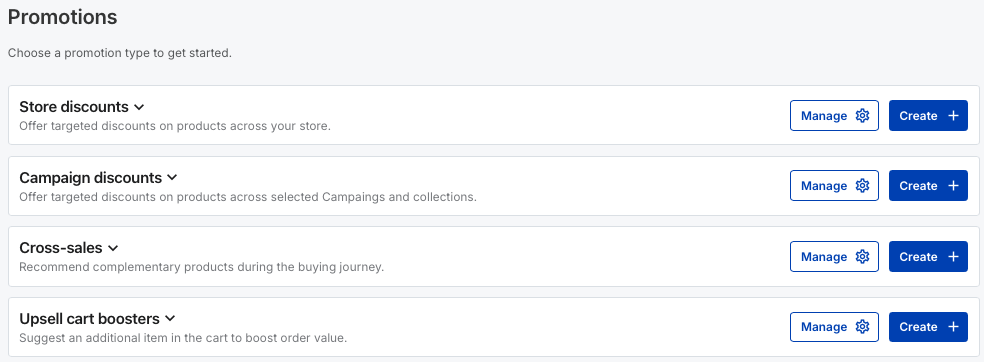
Go to Upsell cart boosters, and press manage.
If this is the first time you are using these the next screen will be empty.
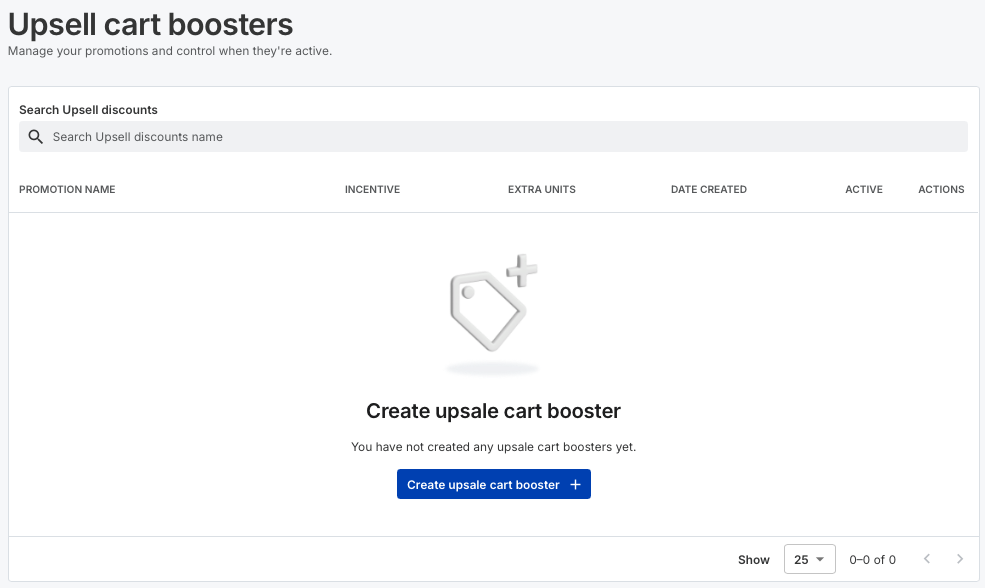
To create a new Upsell cart booster, click the create button.
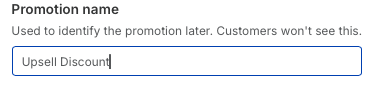
Let's give the promotion a name. Call it upsell discount.
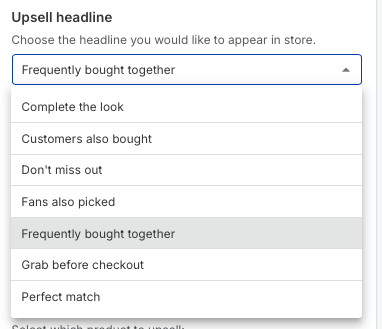
Now choose the upsell headline. This allows you to give the promotion the identity you want. We'll choose Frequently bought together.
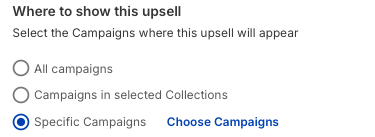
Now you can choose where to show the upsell. You can make this storewide. Or just choose a specific campaign. We're choosing a specific campaign here.
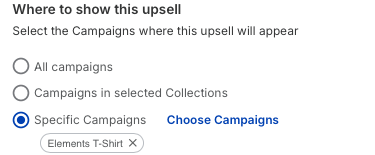
Select the campaign or campaigns and press add campaigns.
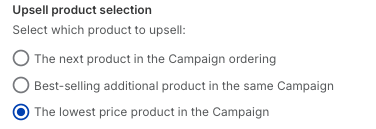
Now you can choose the upsell behaviour. Whether you want it to be the next item in the campaign ordering. The best seller in the campaign. Or the cheapest item in the campaign. We've chosen lowest price for this demo.
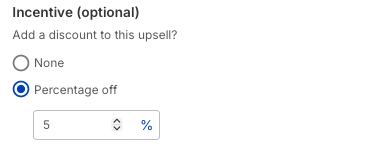
You can choose to just offer the additional product. Or you can give a discount as an incentive to add the additional item. We'll add a 5% discount here.
Once ready, press Create Discount.

If you want to check the promotion or change something. You can press the edit button.
Now publish the changes to your store.
Once published, we can check out the discount in action on your store.
Find the campaign we added the upsell to.
Add the item to the cart, and you'll see that it is offering an additional item from the campaign. With the 5% discount.